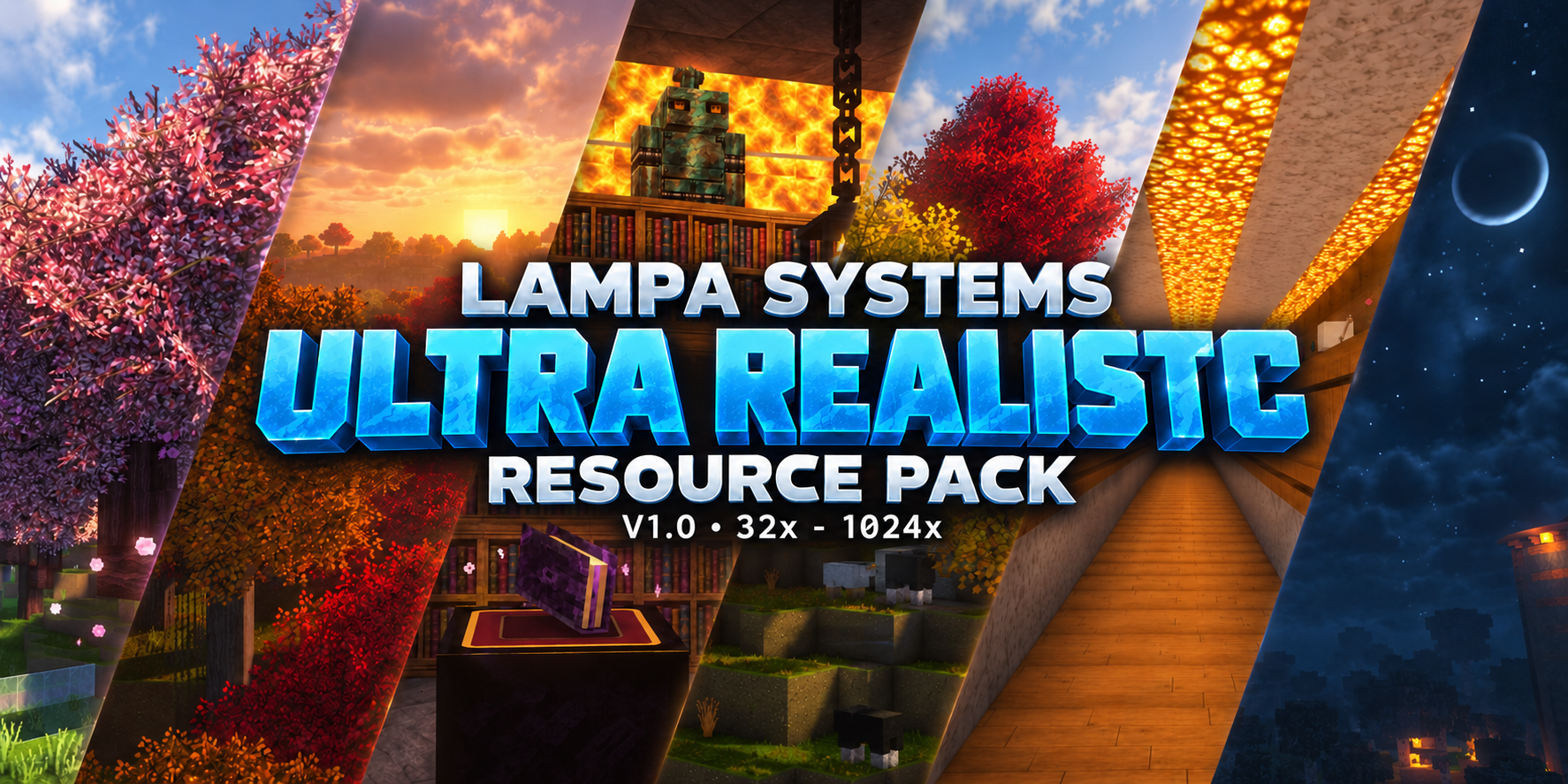
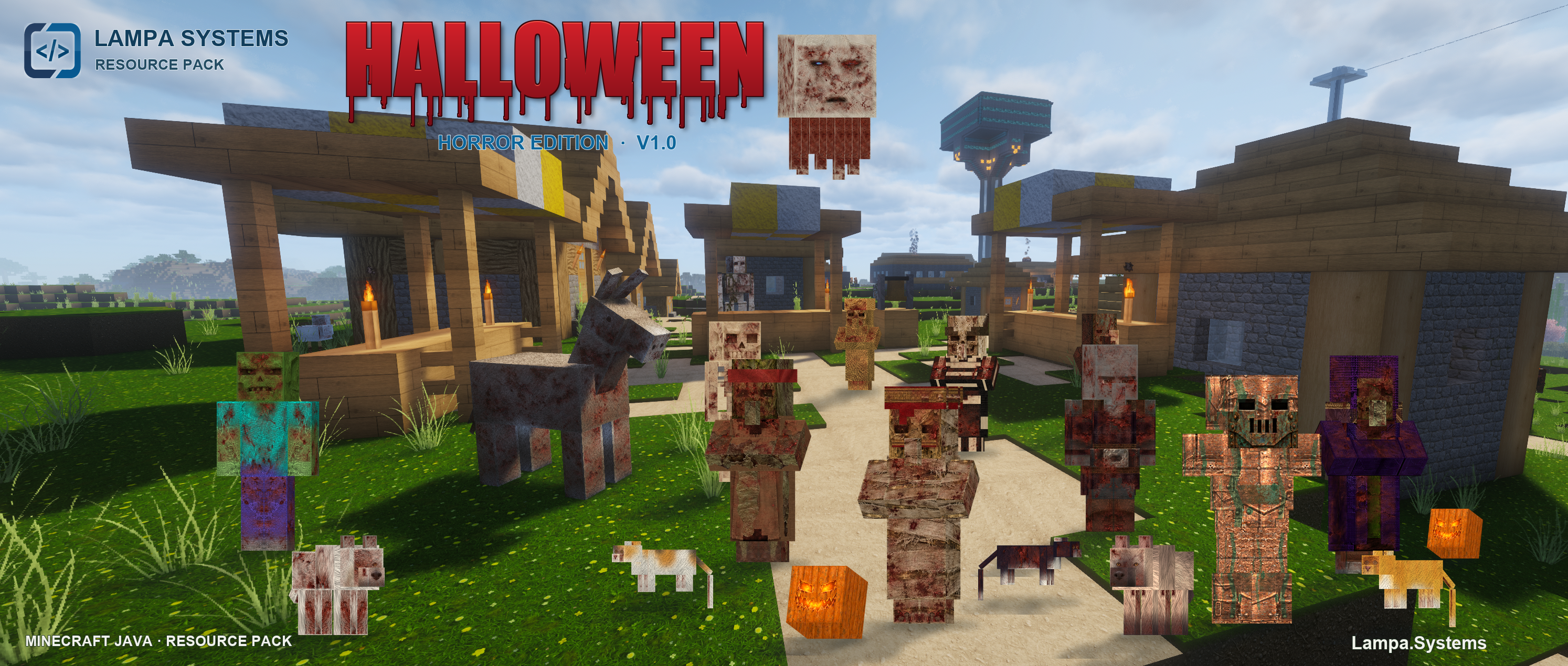
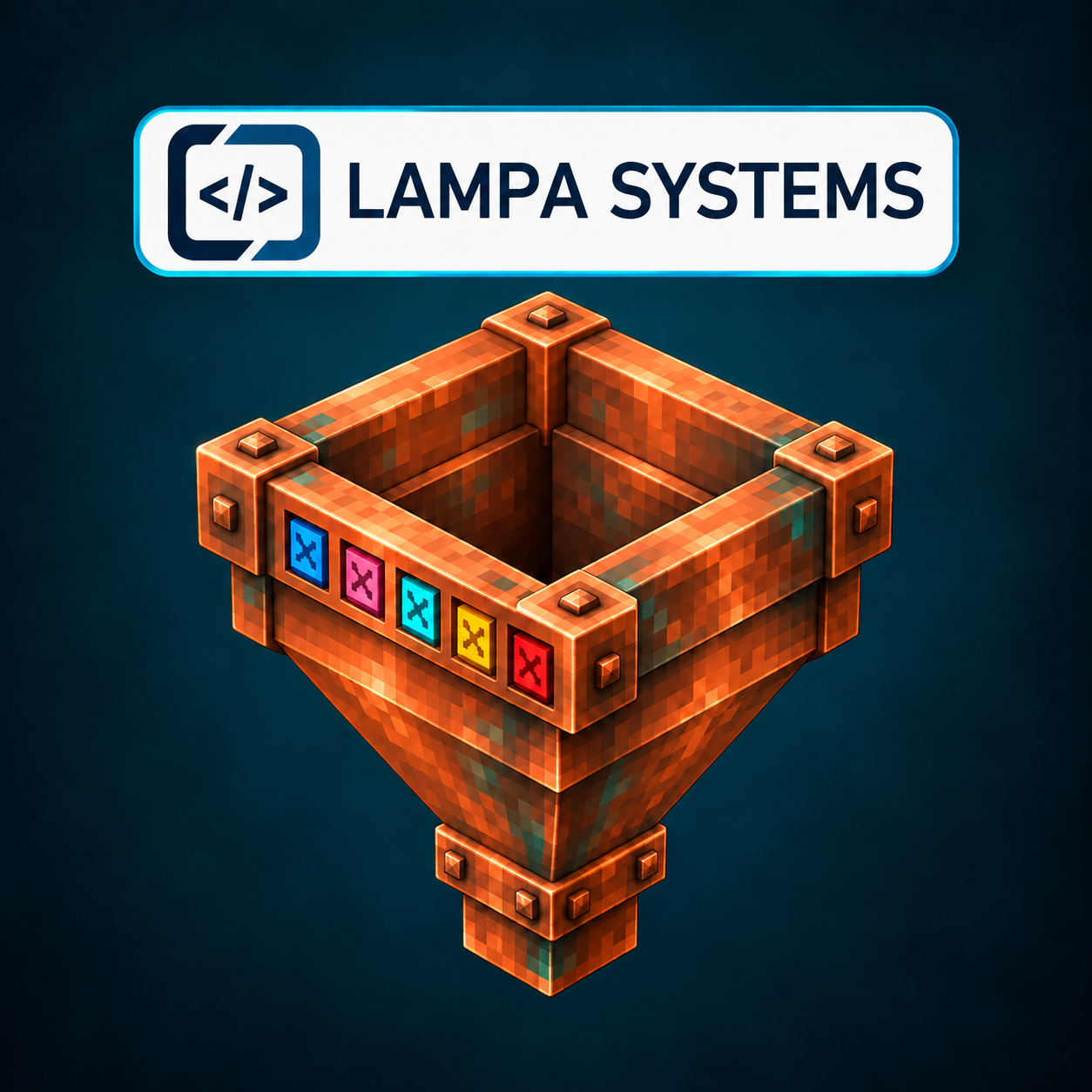
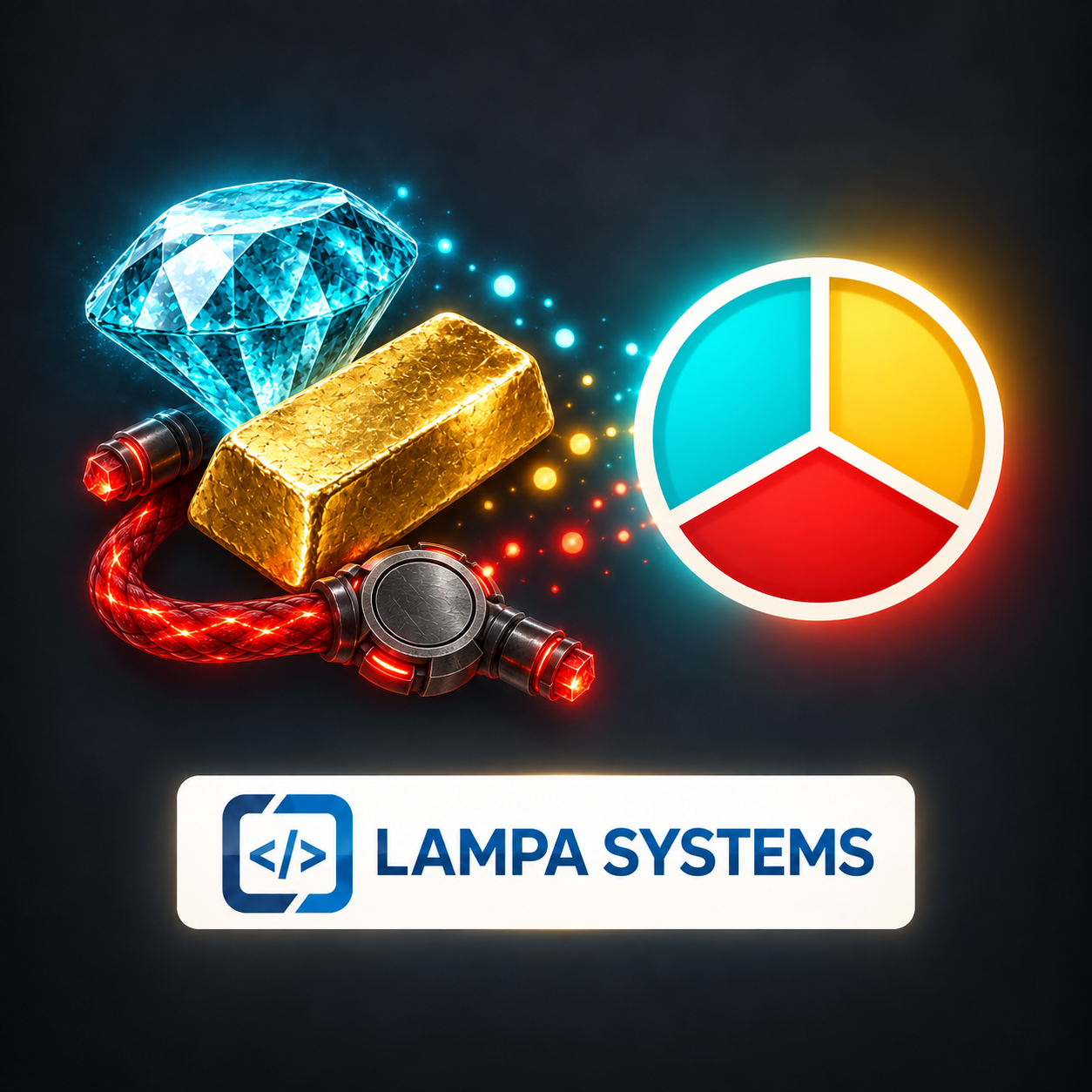
On the left, the look changes; on the right, the gameplay: resource packs and mods each have their own area, with previews, downloads and clear documentation.
01 Resource pack
Resource pack
Release V1.03
A clear, high-quality look for familiar worlds: redesigned surfaces, harmonious colours and variants that preserve the original feel. 32× is available as a free direct download; higher resolutions are managed via Patreon.
Java Edition
32× to 1024×
32× free
The right resolutionDownload 32× directly for free; higher resolutions via Patreon.
Downloads, manuals and detailed technical notes are on each project's page.
What to expect
Everything clearly assigned.
Each project gets a clear version history, current compatibility information and traceable change notes. Resource packs also clearly state which resolution appears on which website.
RESOURCE PACK
Visuals without guesswork
32× is available for free on this website, with additional links to Modrinth and CurseForge. Higher resolutions are managed via Patreon. Comparison images show materials, lighting and surfaces.
MOD
Mechanics clearly explained
Features, dependencies and known limitations are documented for each version. External publications are added only as verified links.
PUBLICATION
Directly and through platforms
The mod is published directly on this website and may additionally be released on Modrinth, CurseForge or other appropriate platforms. Official links will later appear next to the download.
Installation
Ready in a few steps.
The exact manual is supplemented with the required version details for each release. The general procedure is already described here.
01
Installing a resource pack
Choose a release resolution.Download 32× directly for free; get higher resolutions via Patreon. Follow the instructions: extract the outer release ZIP if applicable; do not extract the installable pack ZIP.
Open Minecraft.Under Options, open Resource Packs.
Open the folder.Choose Open Pack Folder and place the ZIP file there.
Activate.Move the Lampa Systems pack into the active column and confirm.
Check.If a version warning appears, compare the Minecraft version information first.
02
Installing a mod
Check the version.Compare the Minecraft version and specified loader, such as Fabric, NeoForge or Forge.
Prepare the loader.Install the required mod loader only from its official source.
Download the mod.Download the JAR file directly here or through a linked official mirror.
Place the file.Move the JAR file unchanged into the mods folder of the correct instance.
Start the game.Select the loader profile. If problems arise, check dependencies and version notes.
GENERAL GUIDE
Play, update, return.
01 · Choose a projectView the preview and compare compatibility with your Minecraft installation.
02 · Download securelyUse the direct download or an explicitly linked official platform listing.
03 · Read the changesRead release notes before updating and back up important worlds as a precaution.
04 · Give feedbackReport bugs through the contact area with the version, loader and reproducible steps.
Note on AI content
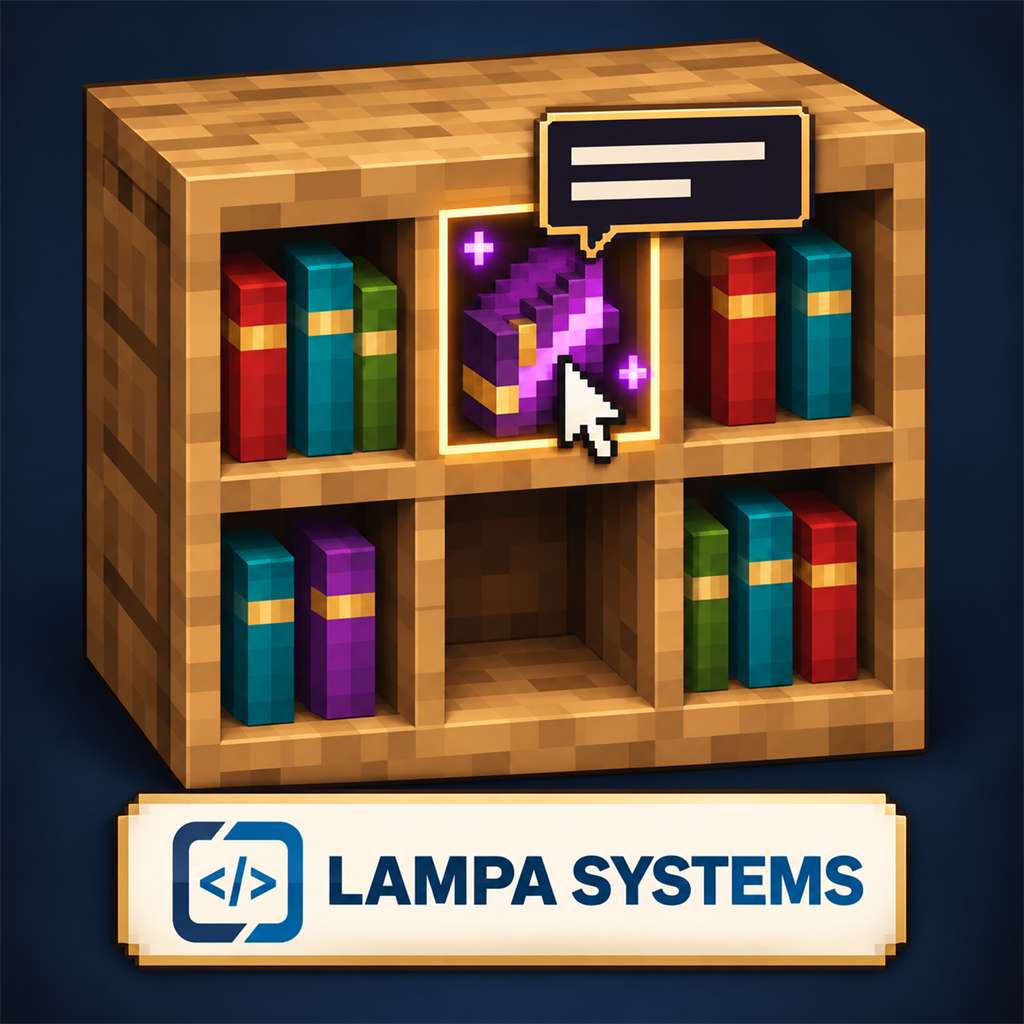
This area uses AI-generated concept and branding artwork. The mod cards show project artwork rather than in-game screenshots. The Chiseled Bookshelf icon was created with AI and includes the LAMPA SYSTEMS wordmark. Actual screenshots, downloads and any AI contributions to published assets are transparently labelled on each project's page.